Claude frames, Arcads motion
Create first frames with Claude, animate them, then make more in the same style.
Tools in this guide: Claude
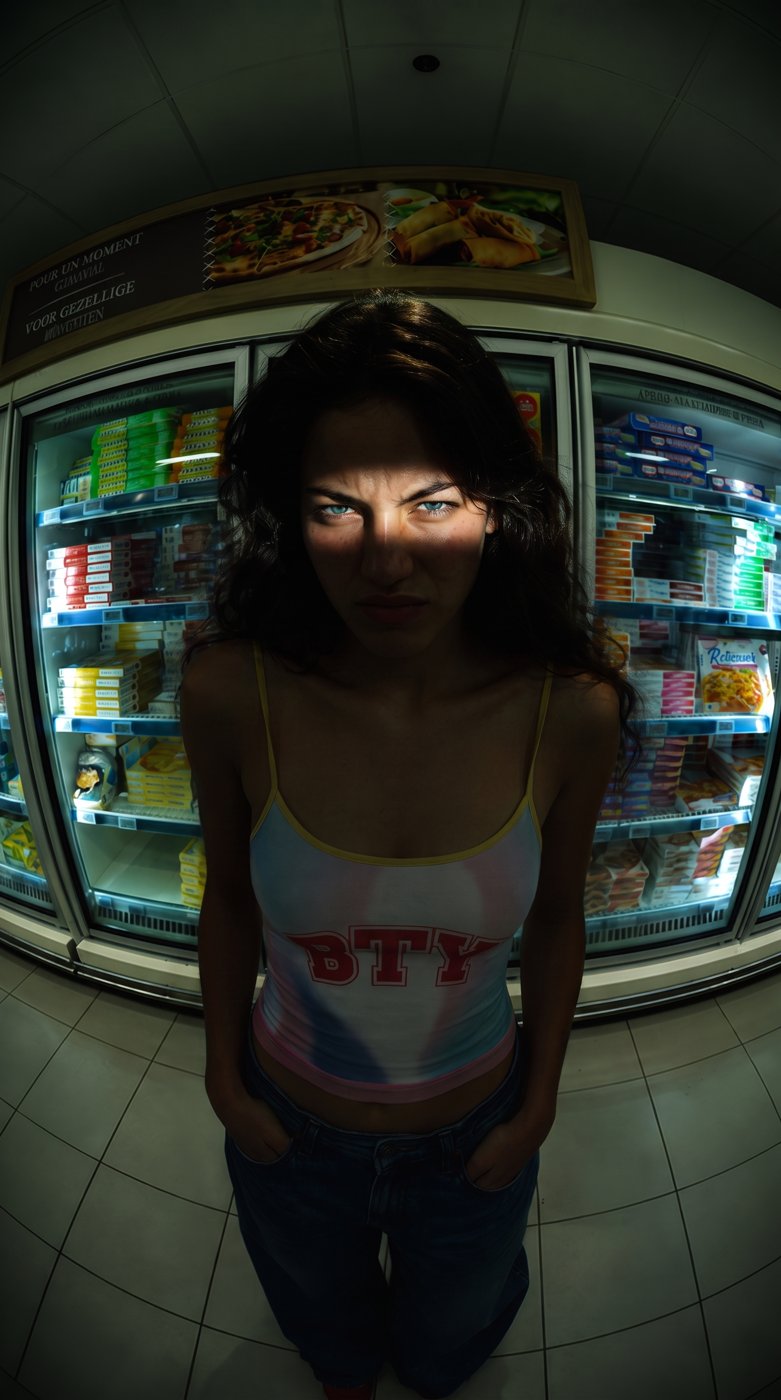
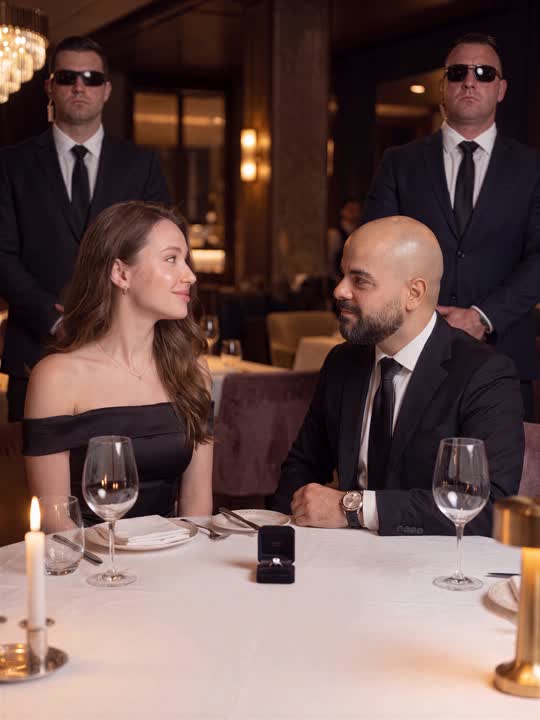
Create the first frame in Claude, animate it through Arcads, and build more scenes in the same visual style.
The workflow: Create the frame → Animate it → Create variations → Animate the new scenes
Step 1: Connect Arcads to Claude
Open Claude and connect Arcads so you can create and animate visuals directly from the same chat.
Step 2: Describe the visual you want
Tell Claude what you want to create. Be clear about the subject, environment, lighting, camera angle, and visual style.
Example prompt
Create a cinematic first frame of a futuristic sports car parked in a dark luxury garage, dramatic lighting, low camera angle, high-end commercial style.
Step 3: Create the first frame
Ask Claude to generate the first visual based on your idea. Review the image and refine the prompt until you get the look you want.
Step 4: Animate the image with Arcads
Once the first frame is ready, ask Claude to animate it through Arcads. Describe the motion you want.
Example animation prompt
Animate this shot with a slow camera push-in, subtle reflections moving across the car, and cinematic lighting.
Step 5: Create more variations in the same style
Ask Claude to create new scenes while keeping the same visual direction.
Example prompt
Create three more scenes with the same visual style, lighting, and cinematic look, but use different camera angles and compositions.
Step 6: Animate each new scene
Take each generated visual and animate it through Arcads. You can use different camera movements or motion directions for every scene.
Final Result
You can go from one idea to a full set of consistent animated visuals without leaving the Claude chat.
Create the frame → Animate it → Create variations → Animate the new scenes
More guides
All guides · All AI tools · Prompts · HandlyTech